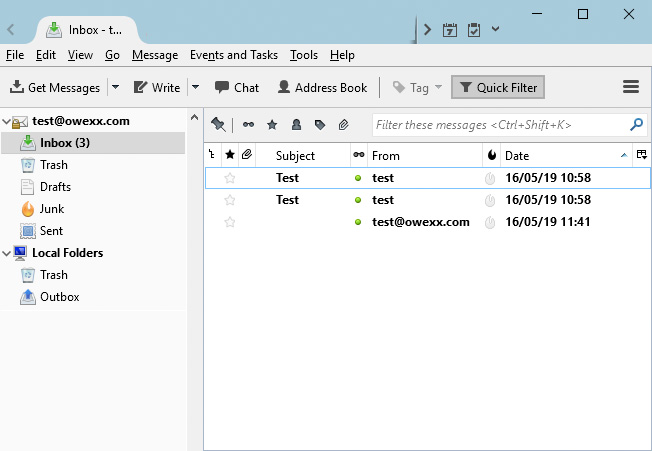
„Mozilla Thunderbird“
email configuration


Download link: press here.
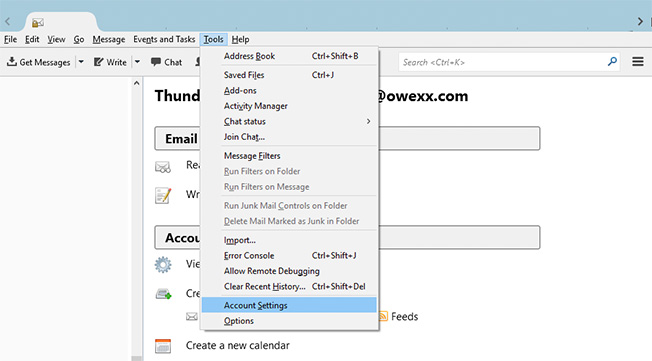
Select „Mozilla Thunderbird“ icon on your desktop and on top of the new window select „Tools“ and „Account Settings“.
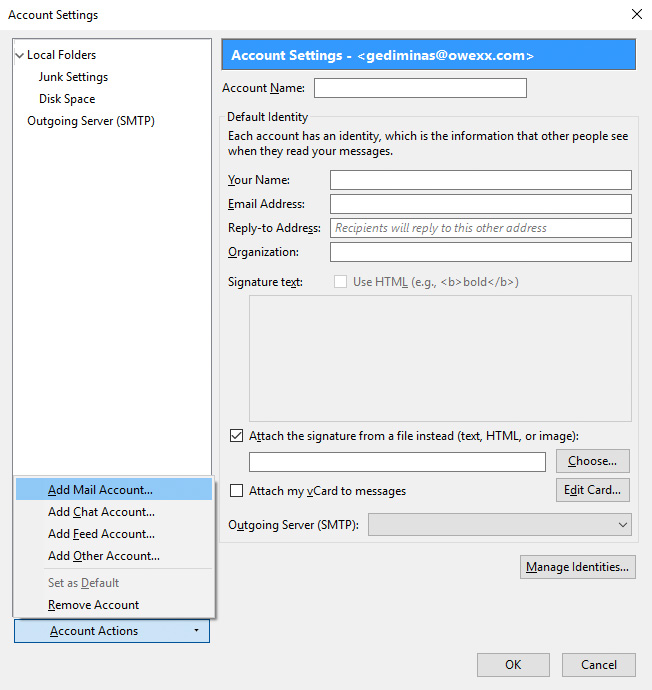
On the next window press „Account Actions“ and „Add Mail Account“.
Fill in your name and email address. Important: your username is your full mailbox name. Insert your password and mailbox description. Then press „Continue“.
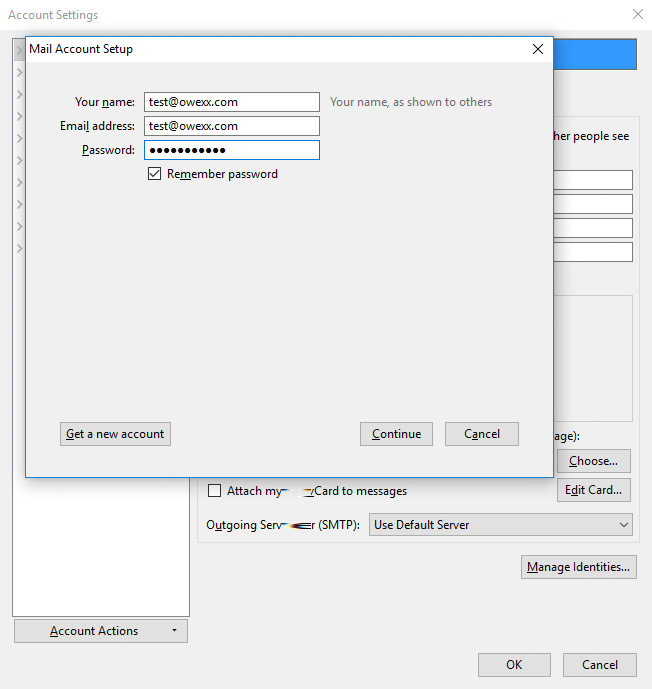
Press „Continue“ and choose fuction „Manual Config“ on the buttom.
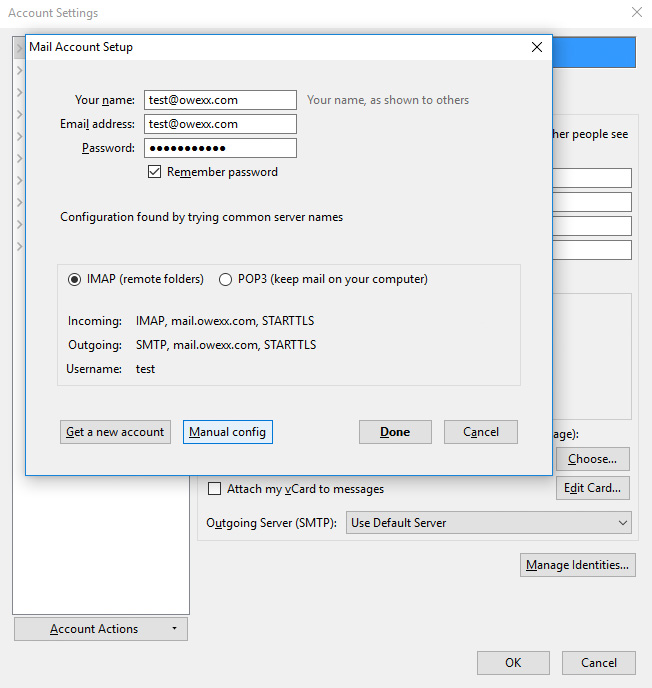
In this window automatically selected IMAP mailbox type. Depending on information that you have been provided for configuration, use IMAP host name (mail.owexxhosting.com, mail2.owexxhosting.com, mail3.owexxhosting.com and other). Insert your email address and password on both types („Incoming“ ir „Outgoing“).
Important: username is email address, which is configurable. „Port“, „SSL“ and „Authentification“ fields are automatically set. Press „Done“.
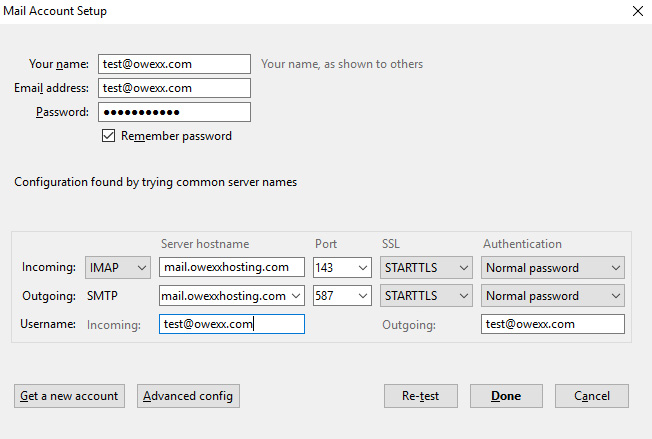
Your email is configured.
In the new window you will see your mailbox content.